
HappyMod for PC: Emulator Installation Guide [2026]
Is it possible to use the HappyMod app on a Windows laptop or a MacBook? The answer is yes, but you cannot install it like a normal computer program.
The HappyMod application is built for the Android operating environment. While the APK supports multiple processor architectures, it requires Android system libraries, runtime permissions, and the Android OS to function. Windows and macOS do not provide any of these. The file cannot run natively on a desktop regardless of processor type. An Android emulator supplies the required Android environment on your computer.
This guide explains how to bridge that gap using virtualization software. To make the app work, you must set up an Android Emulator.
Critical Alert: Avoid Fake Desktop Installers
Before downloading anything, read this security warning. There is no official desktop version of HappyMod (read our Fake vs Real Guide to see why). If you search online and find a file named HappyMod_Setup.exe or HappyMod.dmg, do not download it.
Scammers create these files to trick users. They often contain malware or spyware. The only standard method to run this app on a computer is by simulating an Android phone, as described below.
Why an Android Emulator is the Only Safe Method
Since the app cannot run natively on Windows, you need a piece of software that mimics a phone. An Android Emulator acts as a virtual container. It creates a complete Android operating system window on your desktop. Inside this window, you can install APK files just like you would on a tablet.
For reliable performance, our team recommends established tools. BlueStacks and LDPlayer are two standard options that handle this process well.
Safety Note: Any site claiming to offer a “Native PC Version” is misleading you. The standard method always requires an emulator.
System Requirements for Emulation
Virtualization uses a lot of memory. Before you begin, check your computer specifications. If your machine meets only the basic requirements in the table below, emulation may run slowly on resource-heavy apps.
| Component | Basic Requirement | Recommended for Speed |
| Operating System | Windows 10 or higher | Windows 10 / 11 |
| Processor | Dual Core (Intel or AMD) | Intel i5 / Ryzen 5 (VT-x Active) |
| Memory (RAM) | 4GB | 8GB or more |
| Disk Space | 5GB Free | Solid State Drive (SSD) |
Step by Step Installation Guide
This process has been tested on Windows 11 and macOS. Follow this sequence to get the system running.
Part 1: Installing a Safe Android Emulator
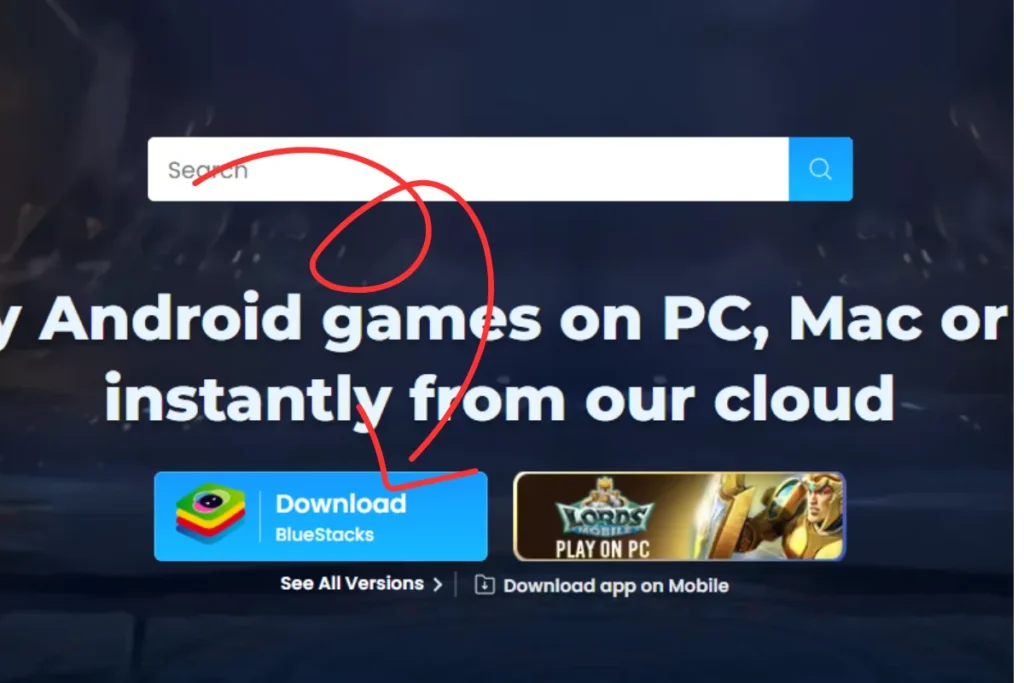
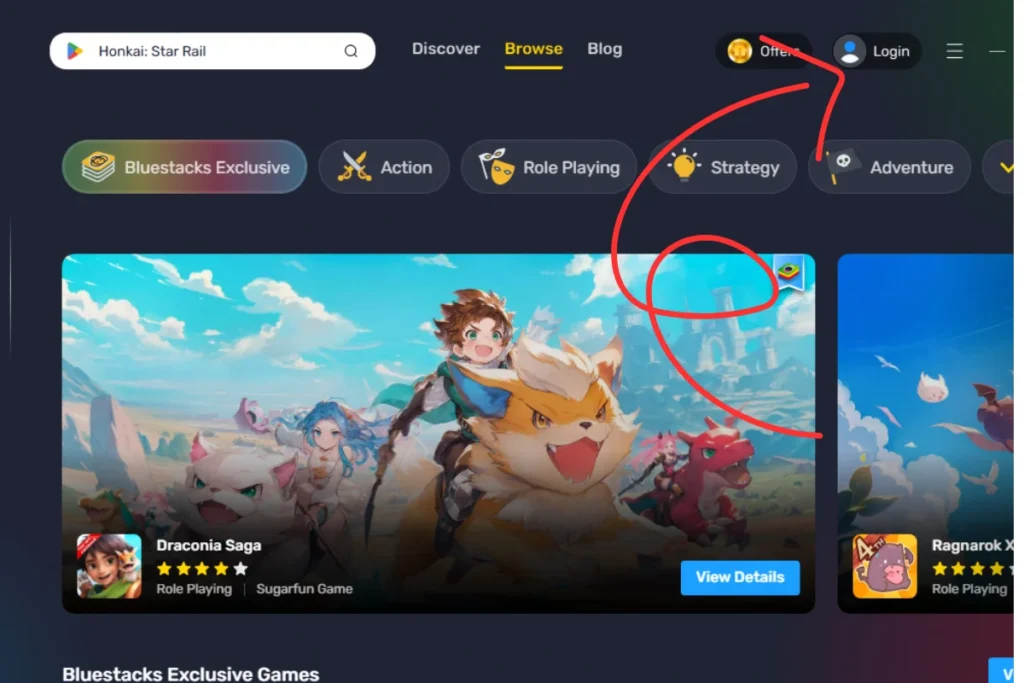
Part 2: Importing the HappyMod App
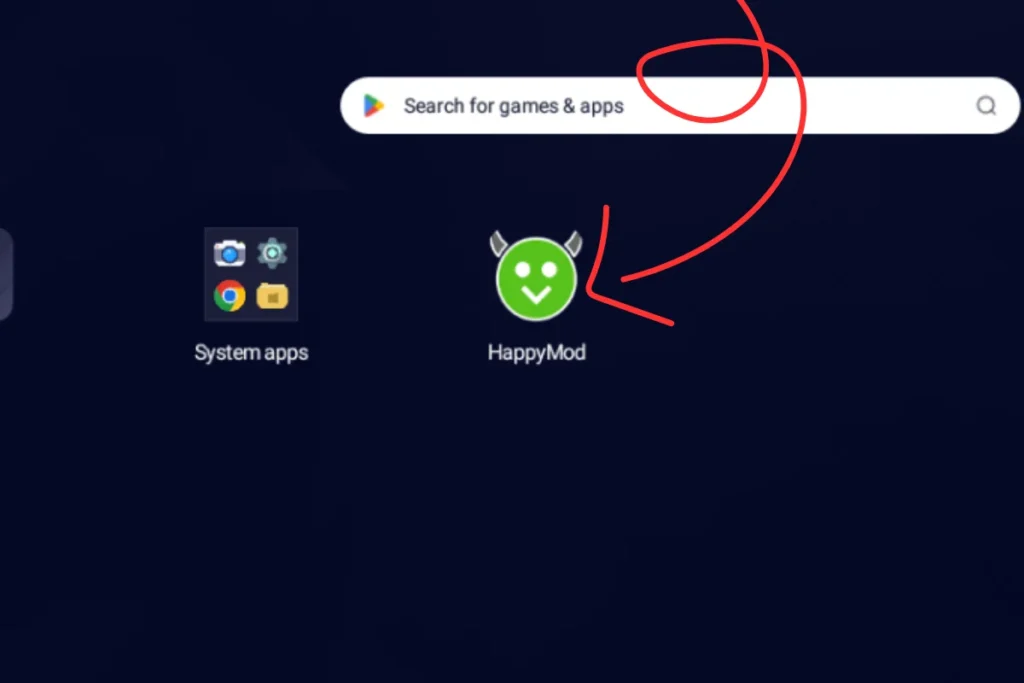
If the app closes immediately or fails to load, check our App Not Installed Fix page for troubleshooting steps.
Why Use the Desktop Method?
Running mobile apps on a computer offers distinct advantages over a handheld device.
Larger Screen
You get a much larger view. Browsing through mod categories or managing files is easier on a 24-inch monitor than on a 6-inch phone screen.
Keyboard and Mouse Controls
Using a mouse and keyboard offers better control. This is especially helpful for strategy games or when navigating complex menus in the store. Scrolling with a mouse wheel is faster than swiping.
No Phone Distractions
Running apps on your PC keeps your smartphone available for calls, texts, and other notifications. You can use apps without draining your phone’s battery or being interrupted by personal alerts.
Performance
A desktop or laptop meeting the recommended specifications above handles emulation with less strain than a mid-range phone, which can mean fewer crashes on resource-heavy apps.
For a detailed walkthrough on finding mods once you are inside the app, read our How to Use HappyMod guide.
Conclusion
The recommended way to access HappyMod on a desktop is through a reputable Android emulator. No legitimate .exe installer exists for this app.
Following these steps lets you run HappyMod on a desktop without downloading any fake or unverified installer files. For answers to other technical problems, visit our Support & Troubleshooting Center.
People Also Ask
Is it safe to run this on my laptop?
Yes, this method is low risk if you follow the correct steps. Download the emulator from its official website only and use the verified APK from our website. Check the SHA256 hash before installation.
Does this cost money?
No. The standard versions of tools like BlueStacks are free to use. HappyMod is also free.
Will my computer get hot?
Running a virtual machine uses CPU power. Your computer might run warmer than usual, similar to when you play a PC game. Closing other applications before running the emulator reduces the load on your processor and helps manage heat.
Why is there no Windows version?
HappyMod is an Android application. No official Windows version exists. Any site offering a Windows or desktop installer is distributing a fake file. Any site claiming to have a “Windows Edition” is likely distributing a fake file.

Jonathan Jude – Mobile Security Analyst & APK Reviewer
Based in Los Angeles, Jonathan Jude has four years of hands on experience reviewing Android apps and mobile software. He writes clear, technical articles focused on app behavior, safety signals, and common user risks.
His work centers on a documented testing process that checks file integrity, permissions, and real world performance. This helps readers understand potential risks before installing third party software. You can connect with Jonathan Jude on LinkedIn and Facebook.