How to Use HappyMod: The Complete Navigation Guide
Once HappyMod is installed, using it comes down to four things: finding a mod, understanding what a specific version actually changes, managing the download, and requesting something that isn’t listed yet — each covered below. Installing, checking a mod’s safety, and keeping the app updated each have their own full guides linked below rather than repeated here.
Getting Started: The Interface at a Glance
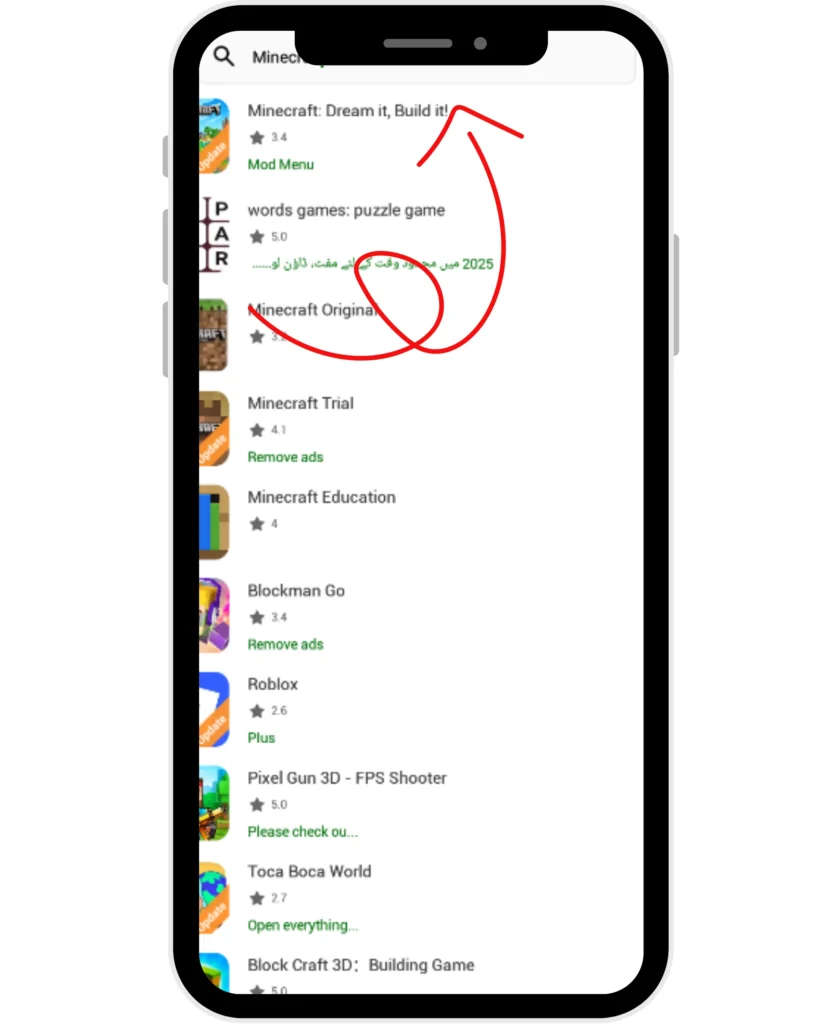
The home screen organizes into browsable categories — Games, Apps, New, and Trending — giving a starting point without needing to know exactly what to search for. A dedicated Categories view breaks games down further by genre (action, strategy, puzzle, and similar groupings), useful when browsing rather than searching for something specific.
The search bar at the top handles direct lookup when the app or game name is already known. Between browsing and searching, most mods are reachable within a couple of taps from the home screen. Each listing in a browse or search result shows its working percentage directly, without needing to open the full details page first — useful for quickly comparing several options for the same app before deciding which one to open and read in full.
Reading a Mod’s Details: What “MOD Parameters” Means
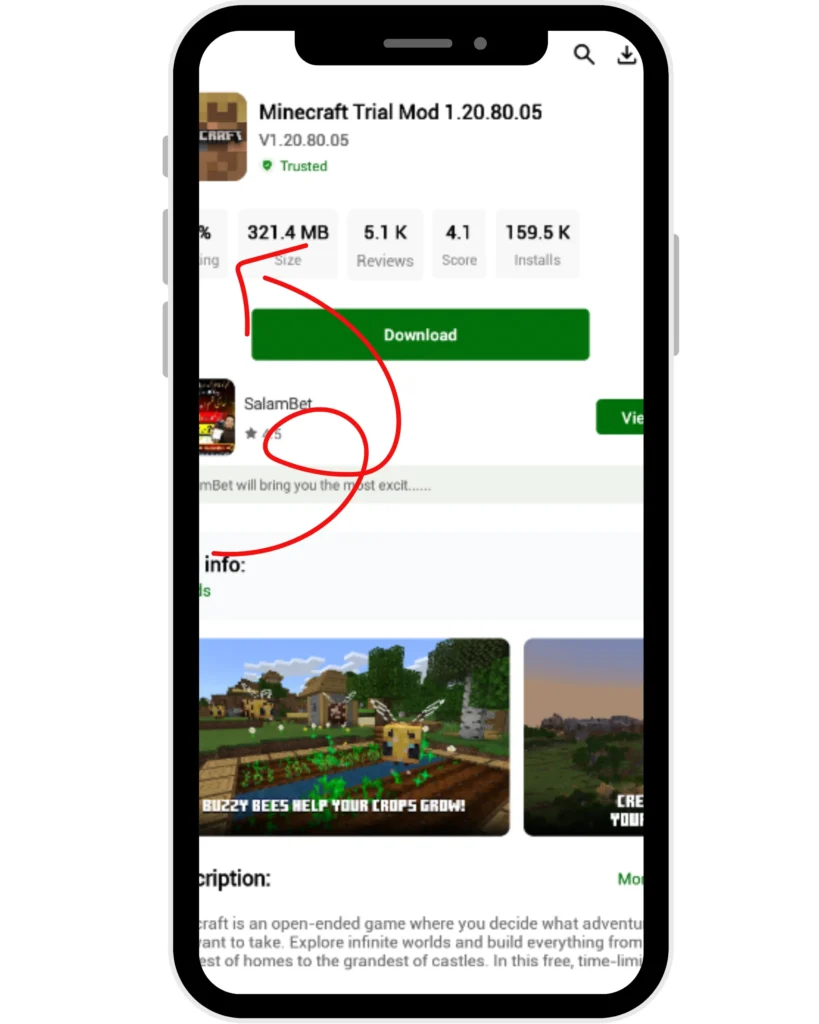
Opening a specific app or game shows a list of the mod versions available for it — several, since different contributors upload different modifications of the same base app. Each version has its own description, but the field that actually matters is MOD Parameters, which states exactly what was changed in that specific build: “unlimited coins,” “no ads,” “unlocked premium features,” and similar concrete statements rather than a vague “modified” label. Reading the MOD Parameters field before downloading is the single most useful habit for avoiding a mismatch between what a reader expects a mod to do and what it actually does — two versions of the same game can carry entirely different modifications, and the version number alone doesn’t indicate which.
The working percentage and the MOD Parameters field answer different questions and shouldn’t be conflated: working percentage says whether the mod installs and runs; MOD Parameters says what it actually does once running. A mod can have a high working percentage while still not doing what a reader assumed, if the Parameters weren’t checked first.
Managing Downloads
Tapping download on a mod doesn’t install it immediately — it queues in the app’s Download Manager, accessible via an arrow icon, which separates files currently downloading from ones finished and ready to install.
This distinction resolves a common point of confusion for new users: a download that appears to have “disappeared” after tapping the button is almost always sitting in the Download Manager’s finished list, waiting for the install step, not lost or failed. Checking the Download Manager before assuming a download didn’t work saves a repeat download that wasn’t actually necessary.
The same view is also the practical place to clear out finished downloads once installed — the APK files remain on storage after installing unless removed manually, which adds up across several mods on a device with limited free space.
Requesting a Mod That Isn’t Listed
If a specific app or game isn’t in the catalog, or an existing listing doesn’t have the modification wanted, HappyMod includes a request feature — a form where the specific app and desired modification can be described for other users or the platform’s own contributors to potentially fulfill. This isn’t a guaranteed or immediate service: a request depends on someone else choosing to take it on, and there’s no fixed timeline. It’s worth using when a specific need isn’t met by the existing catalog, but it’s a request, not an order — set expectations accordingly rather than expecting a specific turnaround.
Submitting a request requires an account (covered below) — a specific, actionable detail worth knowing before attempting to submit one, rather than discovering the requirement mid-form. Naming the exact app, its current version, and the specific modification wanted (not just “make it better”) gives a potential contributor enough to actually act on, the same way a detailed bug report is more useful than a vague one.
Do You Need an Account?
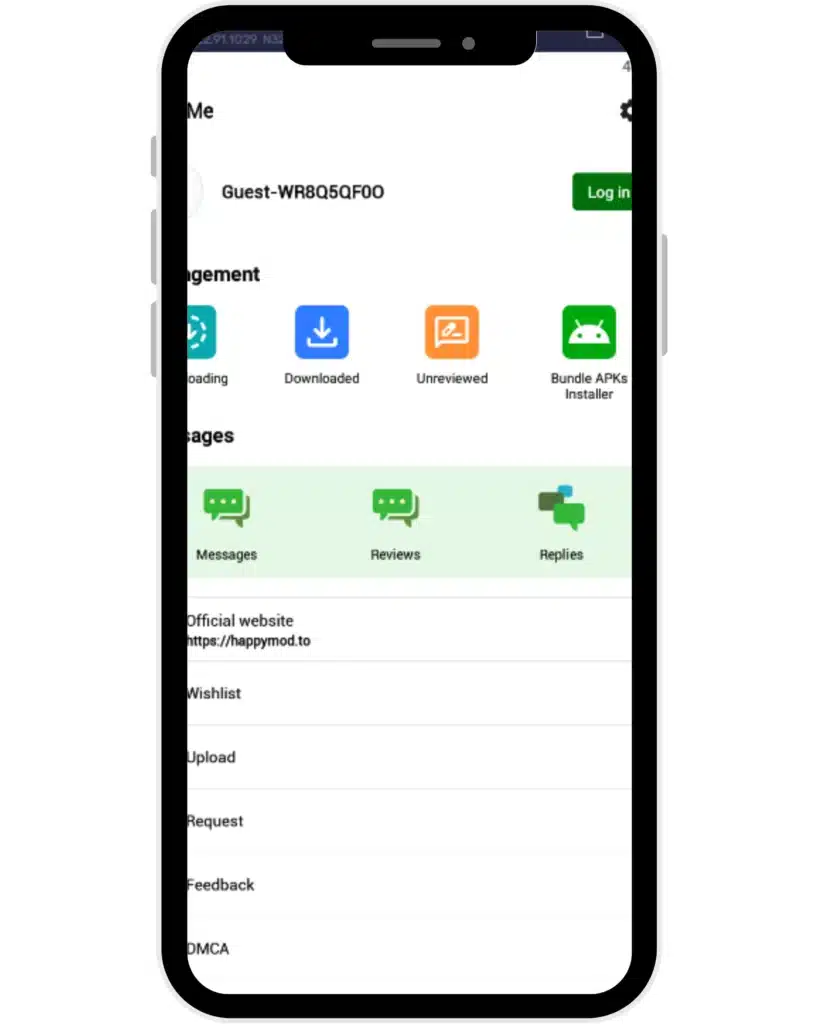
No account is required to browse, search, or download mods — that entire core function works without signing up. An account becomes necessary only for three specific actions: commenting on a mod’s listing, submitting a mod request, and posting a rating or review.
Account creation itself is minimal — an email and basic details, or signing in via an existing Facebook account — and isn’t a barrier to the app’s main function, only to its community-participation features. An account also enables password recovery for the same login, relevant only to those who created one in the first place; anyone using HappyMod purely to browse and download never needs to think about this at all.
Installing, Staying Safe, and Updating (Full Guides Linked)
Three related topics each have their own complete treatment rather than being repeated here — plus two for when something goes wrong:
Android-version steps + OBB handling, on the homepage.
Full safety guide.
Dedicated update guide.
Device-side fixes.
Outage vs. connection issue.